Builder & Renovations website template
Ironbark
A building contractor: bold hero with project stats, hover services list, filterable project gallery, five-step process, cost estimator with survey form and wordmark footer.
Fits a builder, contractor, roofer, carpenter, decorator or renovation company.
The 6 sections, top to bottom
Open any one to copy just that section or try it in another theme.
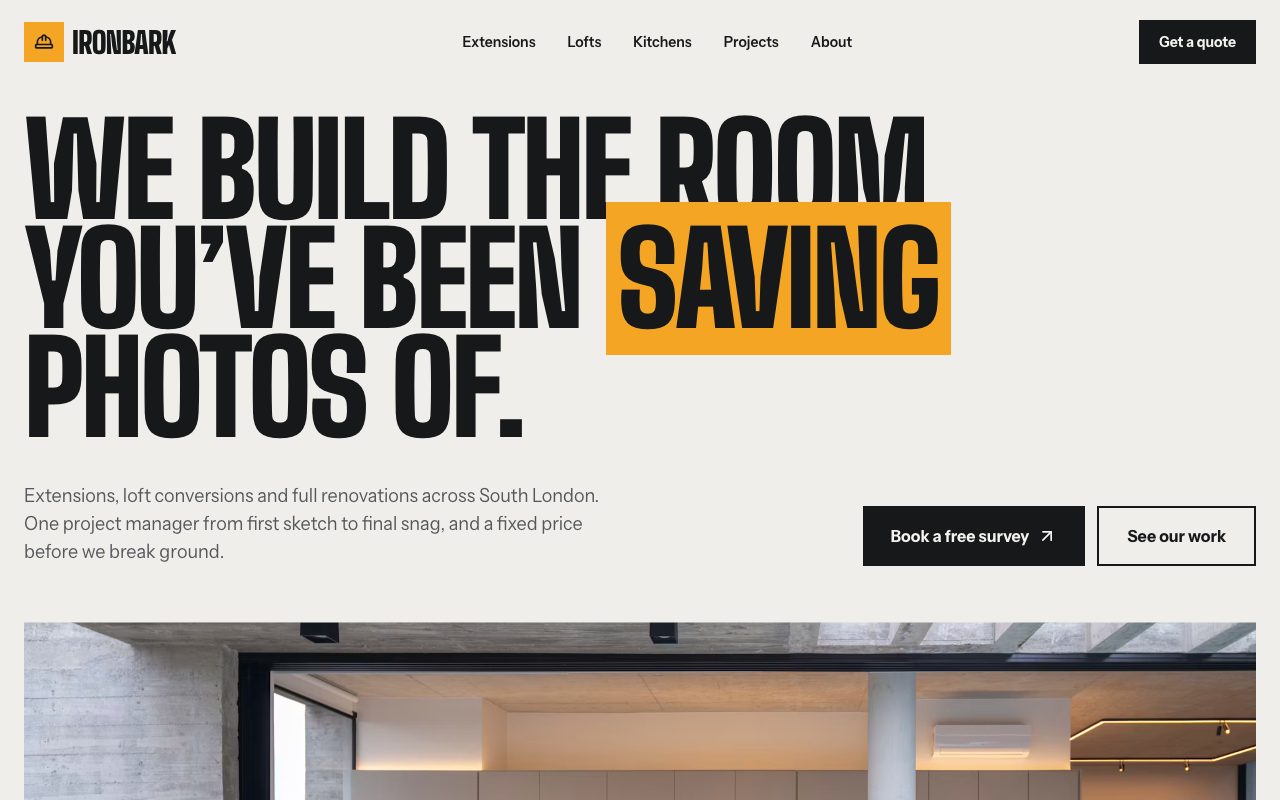 01Builder HeroFirst screen: who you are, where, and the main action
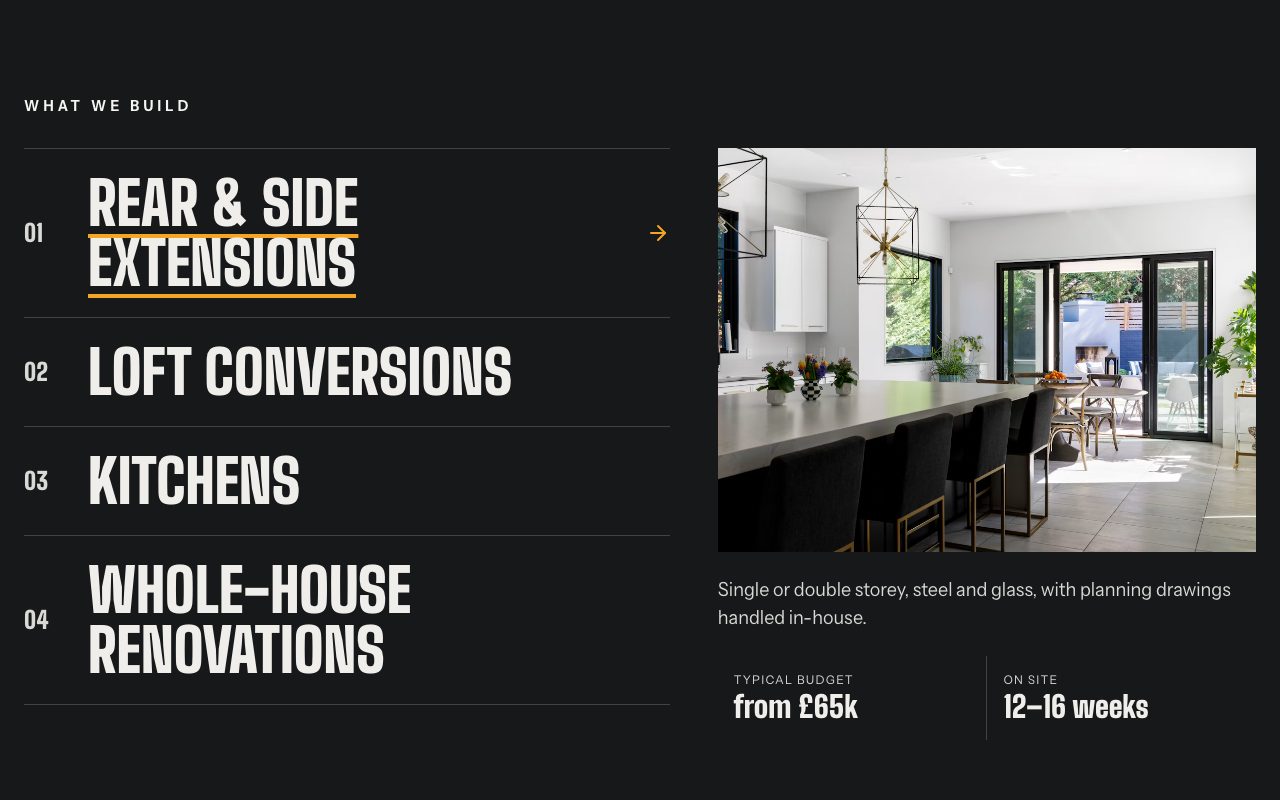 02Services ListThe offering: services
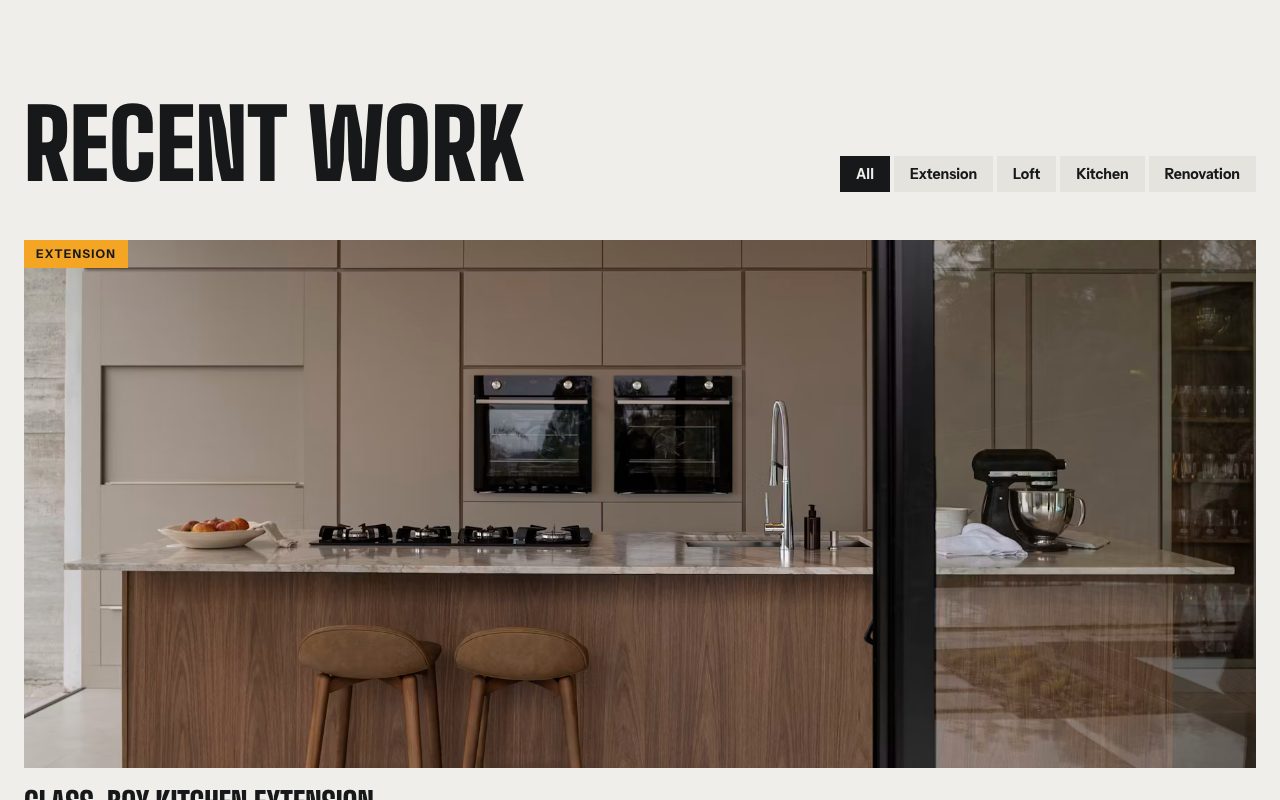 03Project GalleryShowcase: photos of the work or the place
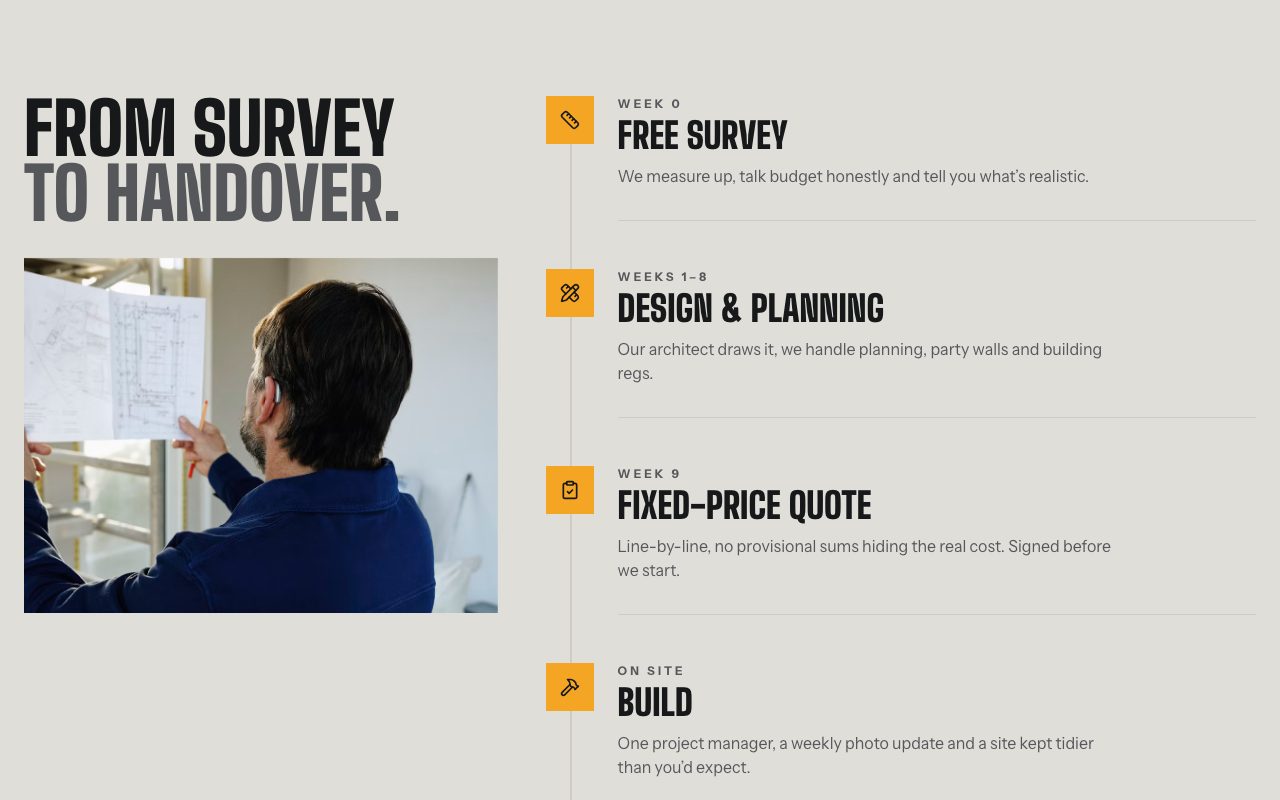 04Build ProcessWhat happens after someone gets in touch
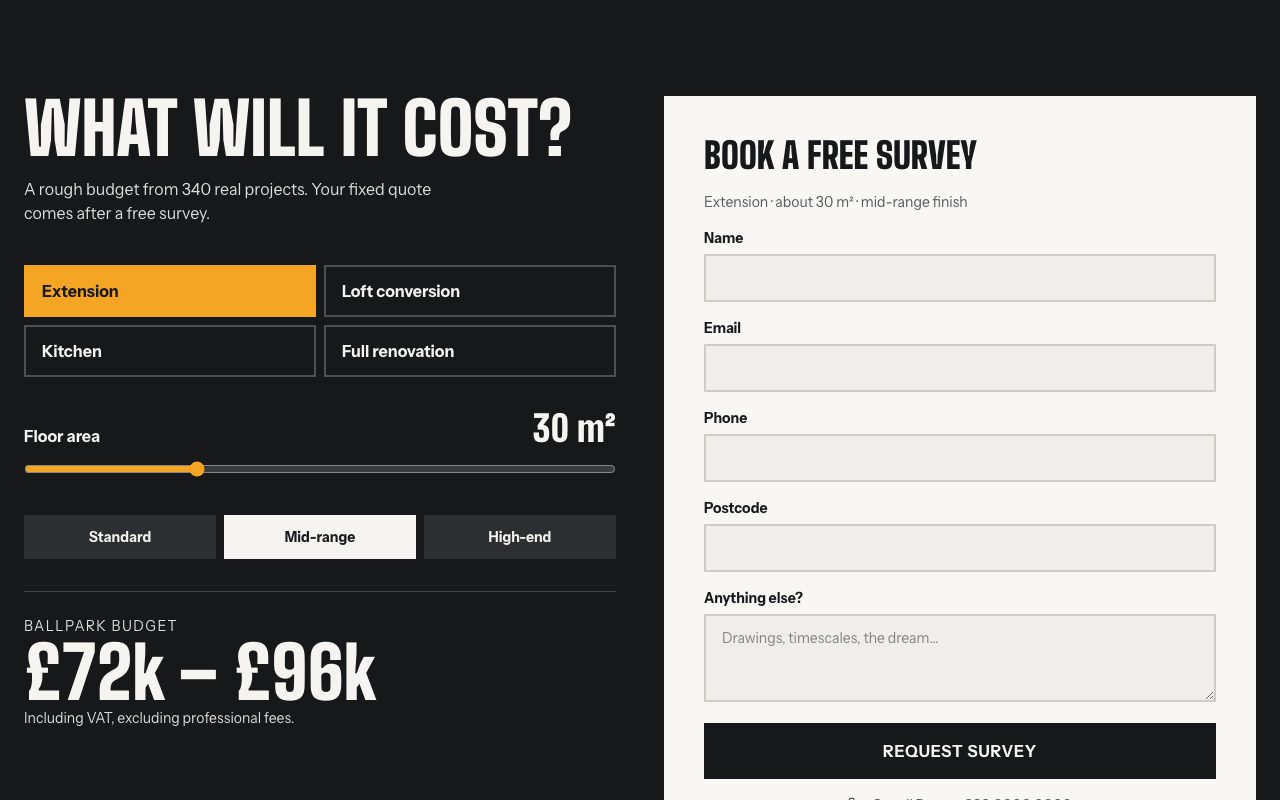 05Cost EstimatorThe conversion: book, call, visit or ask
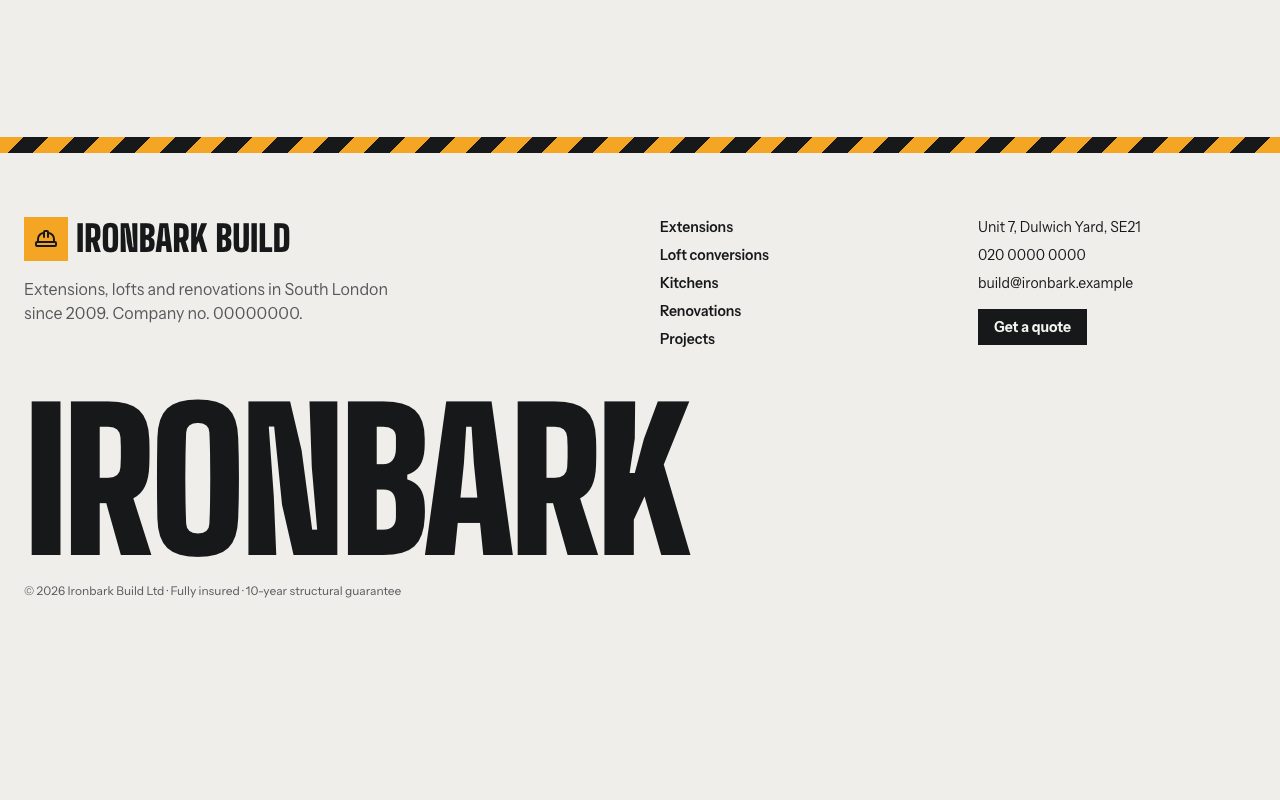 06FooterAddress, hours and links
Who it's for
Built for a builder, contractor, roofer, carpenter, decorator or renovation company.
The copy is written for one business; the prompt tells your AI tool to rewrite it for yours.
Theme
Ironbark with Big Shoulders Display headings and Instrument Sans text.
Pages to add next
- About: the story section and a few reviews
- Services & prices: the offering in full
- Contact: the booking or contact section, a map and opening hours
- Privacy & terms (needed if you take bookings, payments or emails)
- A 404 page and a thank-you page for after the form
- A back office to edit the menu and see bookings and enquiries yourself
Questions
+Is it really free for a client's site?
Yes. Use it for your own business or for sites you build and sell to clients. The only thing the licence rules out is repackaging the library itself as a competing template collection.
+Which AI tools does it work with?
Anything that writes React and Tailwind: Lovable, Bolt, v0, Replit, ChatGPT, Claude and Gemini through the prompt; Claude Code, VS Code, Codex and Cursor through the MCP; or the shadcn CLI.
+Can I change the colours and fonts?
It comes with the Ironbark theme. Pick any of the other themes in the preview before you copy, or ask your AI tool to change the colours afterwards; every section reads the same theme settings.
+Do I have to use all the sections?
No. Each of the 6 sections works on its own; open one below to copy just that part, or add sections from other templates.